Friday, August 17, 2012

Failed to synchronize subtitles...

Thanks to comments from users, we've found a bug in the synchronization page that prevented users from synchronizing subtitles when using Internet Explorer. This caused a lot of frustration for our Internet Explorer users, and we're very sorry for this.

The bug has been fixed, and Internet Explorer users can continue using http://yt-subs.appspot.com as expected.

Based on Google Analytics, around 12% of the people who add subtitles on the site, use Internet Explorer. That's not a low number, but at least it's lower than the average usage of Internet Explorer on the internet. Here are the statistics from Google Analytics:


The rest of the post contains somewhat technical information on what was the bug.

The bug was actually quite simple: During development, we use JavaScript's console to trace / debug issues. Sadly, Internet Explorer doesn't support this, and before publishing a new version to the site, we have to make sure we remove calls on the console object, and we forgot one such call that caused a JavaScript error in the save flow of the Synchronization page.

We have some tests that use WebDriver to run end-to-end tests, but we didn't yet find a way to run these tests on Internet Explorer. Hmm, guess that's next on our plate.

Monday, March 19, 2012

More options to synchronize subtitles

Using the 'T' key (or the on-screen lightning button) is very easy:

  • Play the video.
  • When the current subtitle should start showing, press and hold the 'T' key.
  • Keep the key pressed until the subtitle should be hidden, and then release the 'T' key.
  • Repeat for all the subtitles of the video.
This process is very streamlined and easy, but sometimes you need more control, e.g. when you made an error and want to fix just the start time (in-time) of a subtitle.

For this, we've just added two keys to set just the start time or end time (out-time). These are the 'S' and 'T' keys. When you click the 'S' button (no need to hold), you set the start time of the subtitle to the current playback time, and automatically move to the next subtitle. The same holds for the 'E' key, that sets the end time.

So how can we set subtitle times?
  • Using the 'T' button to set both start and end times (press and hold). This is the best approach for the bulk of your work.
  • Using the 'S' or 'E' buttons to set just the start time or the end time of subtitles. This is useful for fixing subtitle timing.
  • typing the actual time in the start and end time input fields. 
  • Using the little up and down arrows next to the subtitle start and end time. This is useful for fine tuning the timing, and is usually not necessary.
If you'd rather use the mouse to set subtitle times, there are on-screen buttons for the 'T', 'S', and 'E' keys, as seen on the right. Still, we really recommend you try using the keyboard, as it will make you much more productive in the long run.

Tuesday, January 24, 2012

Better Right-To-Left (or Bi-Directional) Support

When we started yt-subs, we made sure you could create subtitles in right-to-left languages like Hebrew or Arabic.

Over the time, newer features like the process screen and a modified player were not created with those languages in mind. You could still create subtitles in those languages, but some of the pages didn't look well (e.g. alignment wasn't right) for right-to-left languages.

We're happy to annonce that this was fixed, and adding caption or subtitles in a right-to-left (or rather bi-directional) languages should work as expected.

If you are still seeing issues with right-to-left support, please contact us.

Saturday, January 14, 2012

Video locking

A few months ago, we've added a feature that lets the owner of a video lock it. When a video is locked, no one can modify it, not even the video owner. This is sometimes useful for preventing accidental change to a video that's already subtitled and there's nothing more to do with it.

Of course, the video owner can unlock the video, and then anyone (who previously had access to the video) can update the video once again.

There was one bug - when a video is locked, you couldn't download its subtitles. Since the aim of this site is to support creating and sharing subtitles, this was really an annoying bug. But now it's fixed, and subtitles of locked videos can be downloaded.

So why did it take so long to fix it? Here we need to get a bit technical.

http://yt-subs.appspot.com is built using App Engine. Generally, this has been a blessing, as this environment is really easy to work with, and development speed is quite high, which is important for a hobby site that's being developed and maintained in spare time. It's also important that App Engine supports free hosting for small sites (like yt-subs).

But around Sep. 2011, Google announced a change in the App Engine pricing. Before the change, yt-subs was well below the free quota. After the change, yt-subs would cost something like a $1 a day. That's quite a lot for such a small app.

Google provides some tools and recommendations for improving the performance of App Engine applications, and one of those recommendations was to reduce the number of objects that are read/written from/to the database (datastore in App Engine terms).

Now, to watch a video with subtitles, we need to fetch tens or even hunders of subtitles - that's tens or hundreds of objects read from the database. Instead - when locking a video, we actually group all the subtitles into a single object stored in the database. It's a lot cheaper to read, but you can't update the subtitles while they're all grouped into a single objects, and that's why the video is locked.

So the whole locking / unlocking issue was rushed in to make billing for the application more sane, but at the cost of having some bugs that would be fixed later. BTW, there were many other changes besides locking and unlocking. Most of them were around using memcache, which really helped bringing down the cost of operation.

As it is now, yt-subs is not free, but falls within the minimum spent of an App Engine application ($9/month), and we're working hard to try and make it free again by optimizing it even further.


Sunday, September 4, 2011

Search for videos in the dashboard

Up until now, you could only keep track of your videos (or videos you're interested in) by adding them to your favorites list. While this is enough in most cases, I've got comments from people who wished they could search for videos in the dashboard.

So I've added this option. Now there's a "Search for video" area in the dashboard that's similar to the one found on the main page. Note that this search will search all languages and (of course) can return videos that are not yet ready for viewing - that's what the dashboard is all about.

Saturday, June 4, 2011

Don't loose your changes

Adding subtitles to a video is a lot of work. It takes a lot of time to write the transcript of the video, and to synchronize the subtitles. If you ever hit the back button or accidentally navigated to another page without saving your changes you probably lost some precious time and felt like you could choke someone.

Fear no more - we're not protecting you by confirming page navigations if there are pending changes that were not yet saved. If you make a change to a transcript, or modify something in the synchronization page and try to navigate to another page, you'll get the following warning:

You have pending changes. Are you sure you want to leave this page and loose changes?

Hope you'll never loose a change again :-)

Note: For the technical savvy, this is implemented using the onbeforeunload event, which is quite simple. I should have added it a long time ago.

Wednesday, January 12, 2011

Upload Subtitles Directly to YouTube

We've added support for uploading subtitles directly to YouTube.

After you've finalized the subtitles for a video, just click on the 'Publish' tab, fill in the optional title name for the subtitle track and upload the subtitles directly to YouTube.

Note that as per YouTube's policy, only the owner (or author) of a video can upload subtitles to it. If you're not the owner of the video, there's not a lot you can do. Maybe try to leave a comment on the video. Since links are not allowed in comments, you'll have to say something like:

I've added captions/subtitles to your video using YouTube Subtitler. Could you please upload these subtitles to YouTube so that everyone can enjoy this wonderful video with subtitles?

If you encounter any issues with uploading subtitles to YouTube, please let us know, it's a new feature and we're still trying to make sure we cover all the corner cases when communicating with YouTube.

Thursday, December 9, 2010

A new version pushed in a bit of a rush

Over the past week, the player within the site doesn't work properly. For example, while transcribing or synchronizing, the play/pause button didn't work, and the timer didn't advance properly, which meant you couldn't easily set in-time and out-time for subtitles.

This happened because of an unknown change to the embedded YouTube player. I know that because the site hasn't changed in quite some time (too long a time).

I found a workaround for this problem, and just updated the site to include this fix. This version was not fully tested because of the urgency of fixing the player problem, so I hope no new bugs were introduced. If you find something strange, please let me know.

Thursday, August 19, 2010

Link your YouTube Subtitler account with your YouTube account

Some people don't get it at first, but YouTube Subtitler is not YouTube. It's a site that makes it easy to add subtitles (or captions) to videos that come from YouTube.

The whole captioning process doesn't need to know anything about your YouTube account. You pick a video; create a transcript for it; process the transcript into subtitles and synchronize the subtitles.

But wait. If you allow YouTube Subtitler to access your account on YouTube, we can make the captioning experience a little better - In most cases, you want to caption one of your own videos. When doing that, you need to search for that video, but if YouTube Subtitler is aware of your YouTube account, it could simply present all your YouTube user's videos, and you just need to pick the video you want to caption.

We call that "Linking your YouTube Subtitler account with your YouTube account".

When you go into the YouTube Subtitler Dashboard, you'll see the following icon next to your user name:


This means your YouTube Subtitler account is not currently linked to your YouTube account. To link your accounts, click on your user name. This will take you to the settings page, where you can link the accounts.

Since you might have some privacy concerns about linking your accounts, it's important for us to stress the following:
  • YouTube Subtitler never gets access to your YouTube account password.
  • YouTube Subtitler has access to your videos, but will only use that access to list your videos and (in the future) update video captions.
  • You can always unlink the accounts (using the Settings page). You can also manage your YouTube account and see which external sites have access to your account (and revoke access).
Happy captioning :-)

Saturday, July 17, 2010

Bug fix - better mouse and keyboard interaction

It turned out the synchronization phase suffered from a known bug.

Say you want to synchronize a few subtitles, you use the flash player controls to seek forward or play - whatever. Now, if you try to hit the 'T' button to time subtitles, nothing happens. Why? Because the flash player has the keyboard focus, so it "hears" the keyboard clicks, and not the synchronization page.

There's a simple workaround, but it's quite annoying to use: After you click anything on the flash player, you have to click back on something outside the flash player. For example, the subtitle you wish to synchronize. Then, the page gets the keyboard focus, and everything works as expected.

So this was the bug, but it has been fixed. Now, whenever you click on the player, some code runs that returns the focus back to the page. Now you can select a subtitle, click play, and hit 'T', and synchronize the subtitle (as you would expect).

Actually, this has also been implemented in the transcribing page, which makes transcribing a little easier as well - you can type, and then click pause or play (with the mouse), and then continue typing without having to click on the transcription area again, since the keyboard focus is automatically returned to it after every click on the player.

Just wanted to say I'm sorry for the frustration this bug caused (as evident from this video), and I'm happy the person who uploaded the video spoke up (through the Contact Us page), and made me become aware of this issue.

Saturday, January 16, 2010

How to upload subtitles to YouTube

Important note: The easiest way to upload subtitles to YouTube is through the Publish tab (when editing a video). For more information see the Publish help page.


So you've worked hard and created subtitles to your video. How do you add them to YouTube so that everyone who sees the video there can see the subtitles?

Note: Only the video author (the one who uploaded the video to YouTube) can add subtitles to the video. If you're not the author, you can try contacting the author and recommend that he would upload the subtitles by following this tutorial.

For the rest of this tutorial, I assume you've already created the subtitles for your video and just want to upload them to YouTube, if you need help creating the subtitles, go to the YouTube Subtitler Help Center.

Step 1 - Login to YouTube
Go to http://www.youtube.com/ and login with your user and password. If you don't login, you won't have permission to upload the subtitles in a later step.

Step 2 - Download the subtitles
Go to the view page of your video within YouTube Video Subtitler. The video is shown on the left-hand side. On the right hand side you'd probably see the subtitles. Click on the 'Info & Options" tab as shown below:


This is how the Info & Options tab looks like:


Click on the "down arrow" to download the subtitles. Once you click on the arrow, you'll see the following options:


Click on the 'Download' button to save a copy of the subtitles on your computer.

Step 3 - Upload subtitles to YouTube
Click on the 'here' link within the box titled 'Is this your video?' You should get to a page within YouTube where you can add the subtitles you just downloaded.

Remember the link will only work if you're already logged in to YouTube with your YouTube account. Since YouTube Subtitler is an external site, it has no way of knowing you're actually logged in to YouTube or not (for privacy reasons, which is good).


Tuesday, November 24, 2009

The first major overhaul of the site

It's been a while since the last update to the site, but this means a lot has happened:
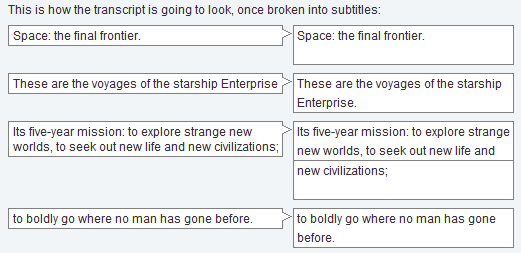
  • Video transcription is now a lot easier. Instead of having to manually split long sentences into two-line subtitles, you can now write full paragraphs, and during the processing of the transcript into subtitles, those long paragraphs will be cut into subtitles.
    For example, here's how you would type in a transcript:


    The vertical dashed line represents a sensible line width for a subtitle, but you usually don't care. Just type in long paragraphs, and let the processing phase handle them. Here's how the conversion from transcript to subtitles look like:


    More information about the revamped workflow can be found at the workflow explanation within the new help center.

  • There's a new help center with a lot more information on how to create subtitles. This includes page level help that can be accessed from any page by clicking on the 'help' link at the top right of the page. Check out the new help center now.

  • When synchronizing subtitles, you can now add new subtitles. This was previously possible only by modifying the transcript (and processing it again), or by creating a new transcript. Just look for the 'add subtitle' button that looks like this:


  • When synchronizing subtitles, you can now quickly go to the time of a specific subtitle. Just choose the subtitle in the list, and click on the 'go to' button, which looks like this:


  • When watching a video, there's now an easy link to edit the video. If you're watching the video with the full transcript on the right hand side, you'll have to switch to the "Info & Options" tab and click on the 5th option:


That's it for now. If you have any comments or suggestions, please don't hesitate to contact us in this blog, or through the site's "contact us" page.

Sunday, August 16, 2009

View all subtitles, go to subtitle

It's now possible to see the whole video transcript the the right hand side of the video. The current subtitle is highlighted in the transcript, and you can click on a subtitle to seek the video to that text. Here's how this looks like:


Or - you can go and see the original All in the family video.

Sunday, July 26, 2009

More languages, and remembering your preference

By request, we've added Farsi, Hindi, and Norwegian to the list of supported languages.

As we now support 25 languages, it becomes hard to pick up the right language from the drop down box on http://yt-subs.appspot.com, so to make things a bit easier, whatever you choose from that list, we'll remember for next time, so you don't have to do it again. Hope this helps.

Monday, April 20, 2009

New languages - Swedish and Romanian

The most recent languages added to the list of supported languages are Swedish and Romanian. This brings the total number of supported languages to 20!

The recent language that were added, were added due to user demand. Do you have another language you want to be added, or any other question or request? Just contact us.

Sunday, April 19, 2009

Welcome

Welcome to the official blog of the YouTube Subtitler - a site dedicated to adding captions or subtitles to YouTube videos. You can add captions to yout videos and then upload them to YouTube, or event add subtitles to other videos.